
Create a Browser Profile
- Open Virtual Browser and click Create Browser.

- Adjust settings in the dialog or keep defaults.


- The profile appears in the list.

- Click Launch to open an isolated fingerprint window.
- (Optional) Pick a Chromium kernel.
- (Optional) Request an apiLink on the site or apply now, then configure it under Client settings.
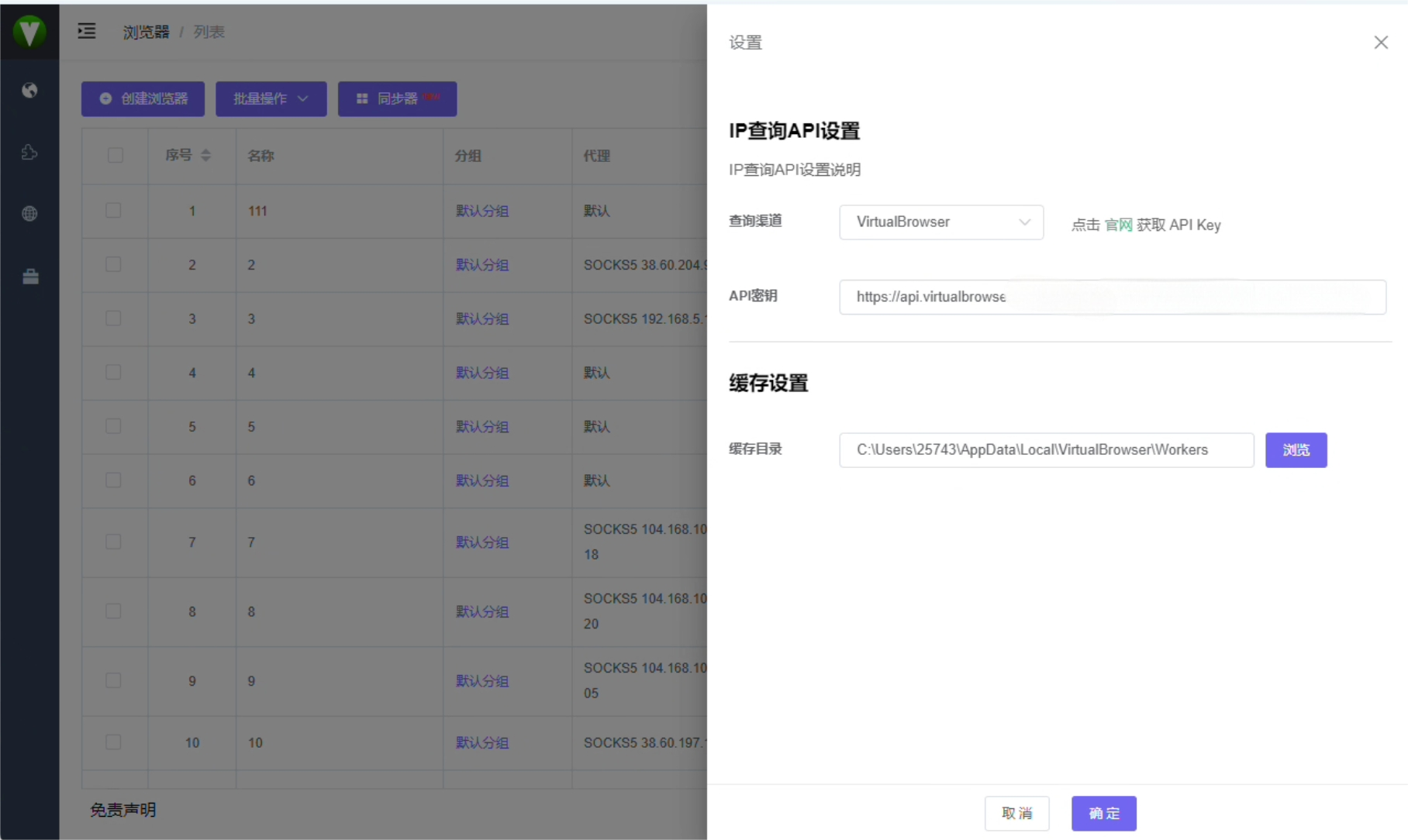
Add frequently used profiles to favorites—see favorite profiles.
Proxy (optional)
In Basic settings when creating or editing a profile:
| Item | Description |
|---|---|
| Proxy mode | Default / none / custom (HTTP, HTTPS, SOCKS5, SSH) |
| Test proxy | Check connectivity before saving |
| Proxy API URL | Use Extract proxy to fill host/port from a third-party API |
For the proxy pool, see Import / export proxies.
Cookies (optional)
- Paste a JSON array in the Cookie field (use the format helper for examples)
- When editing a profile that has been launched, the client may load current cookies into the form
- Pro users can also use Get cookies API


