
IP Lookup API Settings
Configure a geo-IP service so Virtual Browser can align timezone, language, and location with your proxy IP.
What it does
- Resolve country, region, city, timezone for the active IP
- Auto-adjust fingerprint locale settings when enabled
- Keep IP and browser fingerprint region consistent
Get an API key
- Open VB Hub IP service or the site IP Geo link
- Register and sign in
- Apply for an API key (free or paid plan)
- Copy the key from your account page
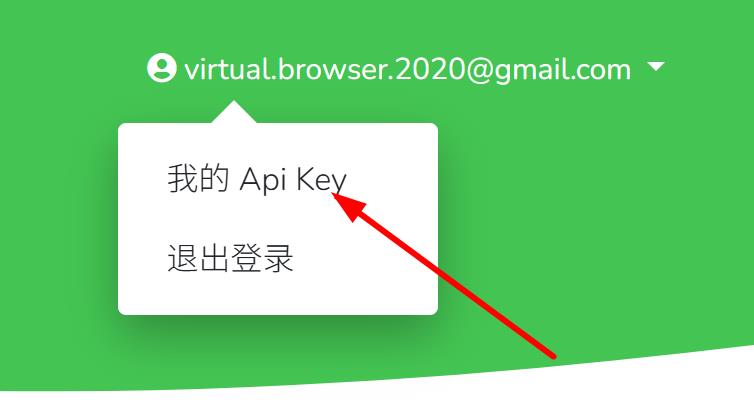
Configure in the client
- Settings (from the browser list toolbar)
- Open IP lookup API
- Choose channel (e.g. VirtualBrowser) or another provider
- Paste your API URL or key, for example:
https://api.virtualbrowser.cc/geo?key=YOUR_API_KEY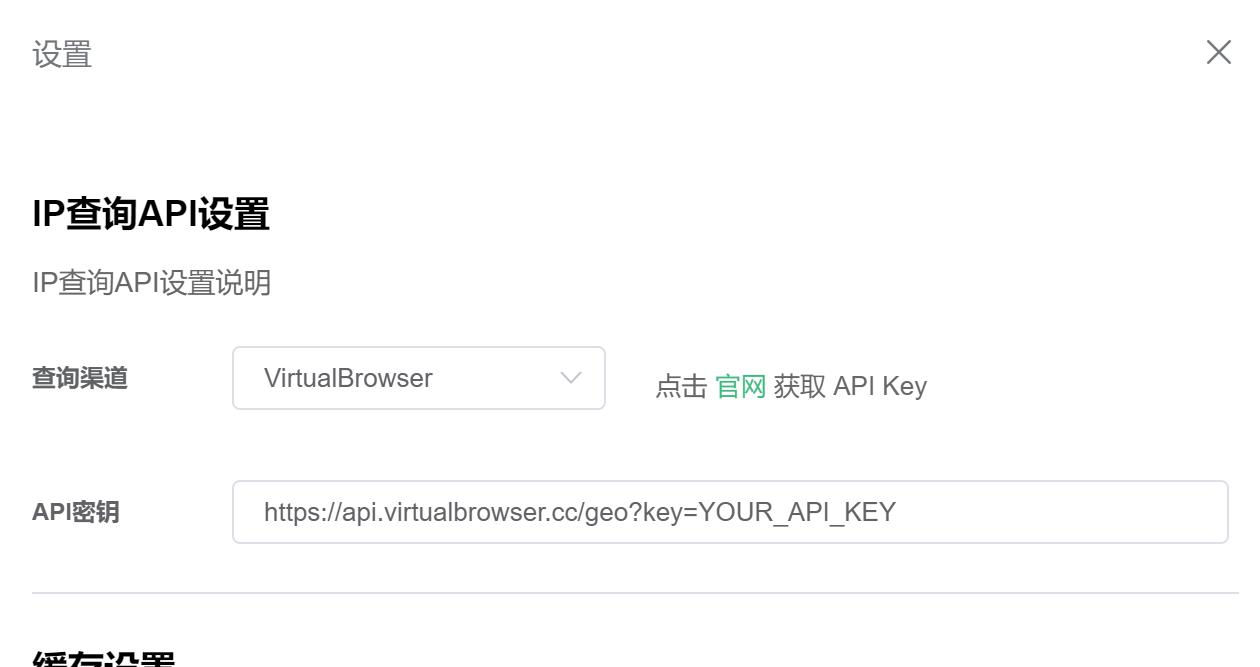
- Save — the client validates the link when possible
Response fields (typical)
IP, ISP, country, region, city, lat/long, timezone, ASN, etc.
Troubleshooting
| Message / issue | Fix |
|---|---|
| “Configure IP lookup link in settings” | Empty or invalid apiLink |
| Request fails | Check proxy, quota, service status |
| Won’t save | Run as admin; update client; retry after restart |
Security
- Do not share API keys publicly
- Monitor usage quotas
- Rotate keys periodically
More: FAQ: Set IP geo API


